Remote HD4.2.2
Publisher Description
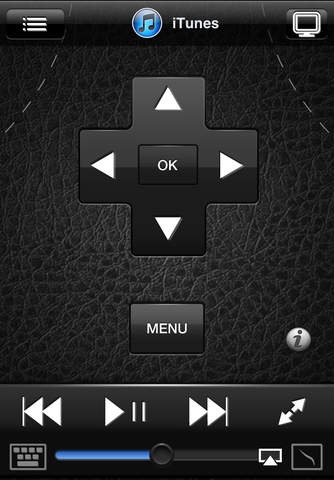
Now with full Lion support, Remote HD is the most feature packed remote for your Mac/PC/AppleTV in the App Store.
Bring your computer to your iPhone (iPad or iPod Touch). Remote HD lets you view a live display of your Mac or PC, stream audio, take complete control of applications on your computer and more, all on your iPhone.
This VNC / Remote hybrid will allow you to fully control your Mac, PC and AppleTV from your iPhone, iPod Touch or iPad over WiFi/3G/EDGE or GPRS.
"...you can control your media, your other applications and your computer all from your phone. Brilliant."
-- Christina Warren, TUAW.com
"...a great app for people that want a cross between a VNC app and a remote control, without having to buy both."
-- mashable.com
INCLUDES:
Live audio steaming from your computer
AirPlay support
Retina optimized live display of your computer / AppleTV
Apple Remote like multimedia remote
Wireless Keyboard
Multi-Touch Trackpad
Wireless Mouse
Gesture Pad (iOS 4.0+)
COMMON USAGE:
Browse flash based content using your home computer
Stream live audio from your computer
Stream audio to an AirPlay enabled device
Take control of your home theater
An inexpensive way to add a wireless keyboard/mouse to your setup
Access private data through a remote computer
Email yourself a copy of an important document from your computer
Use apps or games running on your remote computer
Control your presentations without looking at the projector screen
Monitor your computer while you are away
Use your AppleTV like a computer to launch, switch apps...
KEY FEATURES:
Easy Connect: automatically discover your computer (even over the Internet)
Hardware Buttons: use the volume buttons on your device to control volume on your computer even when Remote HD is asleep
Application Switcher: switch between running applications with a flick
Application Launcher: launch any application in the Applications folder on a Mac/AppleTV or Start Menu of a PC
Spotlight/Windows search: search and launch files on your computer
Wake-On-Lan, Wake over WiFi and Wake-On-Wan (if supported by your router)
Push Notifications: be notified if someone logs on to your machine while you were away
Retina optimized live display with multiple monitor support and more...
QUICKSTART:
Install Remote Helper on your computer/AppleTV
Start Remote HD on your device (iPhone/iPod Touch/iPad)
Tap on a connection to connect
REQUIREMENTS:
Mac OS X Tiger/Leopard/Snow Leopard/Lion (Intel/PPC)
Windows XP/Vista/Windows 7/Windows 2008 Server (32/64-bit)
Unlocked Apple TV (first or second generation)
Remote Helper - free download: http://www.remotehd.com/
APPLICATION SUPPORT (Mac):
Front Row, iTunes, DVDPlayer, Quicktime, iPhoto, Finder, Preview, BOXEE, VLC, XBMC, Plex, EyeTV, SlingPlayer, Spotify, RealPlayer, Acrobat, Keynote, Powerpoint, Movist, Pandoras and all applications that support Keyboard Multimedia Keys.
APPLICATION SUPPORT (PC):
Windows Media Player, MCE, Media Player classic, ZoomPlayer, VLC, DivX Player, BS.Player, MediaPortal, BOXEE, XBMC, WinDVD, PowerDVD, WinTV, SlingPlayer, WinAmp, iTunes, Quicktime, Spotify, RealPlayer, Acrobat, Powerpoint, OpenOffice Impress and all applications that support Keyboard Multimedia Keys.
* Requires GPRS connectivity (or faster), world-wide availability varies. Remote Helper can automatically enable access over cellular networks (3G/EDGE/GPRS) if your computer is in a simple home network like environment and if your Internet router supports UPnP. Some situations may require manual configuration of your Internet router.
If you come across any bugs - we will fix it in the next update. Email us at: support@remotehd.com
NOTE: AppleTV must be unlocked and configured to run Remote HD plugin:
http://www.remotehd.com/AppleTV/Download
Requires iOS 3.1 or later. Compatible with iPhone, iPad, and iPod touch.
About Remote HD
The company that develops Remote HD is App Dynamic. The latest version released by its developer is 4.2.2.
To install Remote HD on your iOS device, just click the green Continue To App button above to start the installation process. The app is listed on our website since 2009-04-24 and was downloaded 76 times. We have already checked if the download link is safe, however for your own protection we recommend that you scan the downloaded app with your antivirus. Your antivirus may detect the Remote HD as malware if the download link is broken.
How to install Remote HD on your iOS device:
- Click on the Continue To App button on our website. This will redirect you to the App Store.
- Once the Remote HD is shown in the iTunes listing of your iOS device, you can start its download and installation. Tap on the GET button to the right of the app to start downloading it.
- If you are not logged-in the iOS appstore app, you'll be prompted for your your Apple ID and/or password.
- After Remote HD is downloaded, you'll see an INSTALL button to the right. Tap on it to start the actual installation of the iOS app.
- Once installation is finished you can tap on the OPEN button to start it. Its icon will also be added to your device home screen.
